For Platform plans
This section applies to you if you're on a Platform plan, where Paperform, Papersign and Stepper are billed together as a single product.
Each plan has varying limits on monthly submissions and overall file storage. Check out our pricing page to see each plan's limits and inclusions.
Types of Limits
Submission Limits - A submission limit counts how many submissions you have across all forms from the start of your monthly period.
File Storage - Size of files uploaded through your forms — these files could be attachments, images, or documents submitted via the image or file upload field. This is calculated as a running total in GB across your entire account, rather than per form.
How do I check my usage?
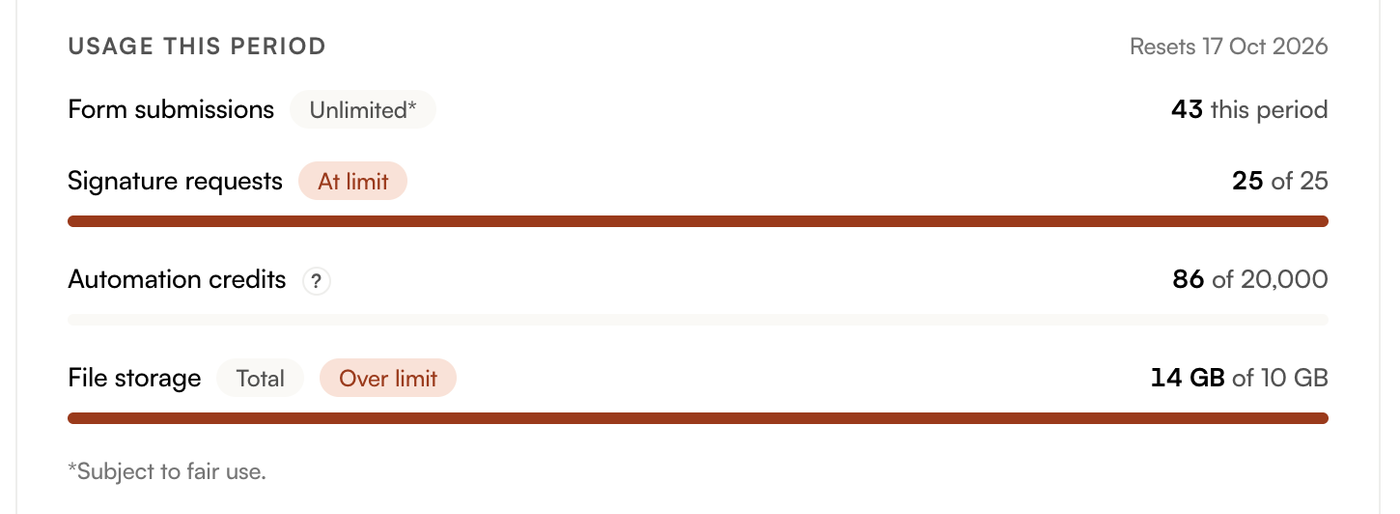
You can check your current usage and limits on your Account Settings → Billing.
What are usage warnings?
You'll see a usage warning banner on both your dashboard and billing page if you approach or reach your usage limit. We'll also notify your team owner and admins by email.
What happens if I go over a limit?
If you exceed a limit, forms whose submissions may affect that limit will close. If you reach a submission limit, all forms will close. If you reach your file storage limit, only forms with an image or file upload question will close. You can resolve this by upgrading to a higher-tier plan with greater file storage capacity or by deleting stored files.
For Legacy plans
This section applies to you if you're on a Legacy plan, where Paperform, Papersign and Stepper are billed as separate products.
Each Paperform plan has varying limits on submissions and storage; some limits reset periodically and some are all-time limits that do not reset. Check out our Legacy pricing page to see each plan's limits and inclusions.
Types of Limits
Recurring Submission Limits
There are three categories of submission limits. Each of them has separate limits that reset at fixed intervals:
- Submissions – Number of submissions across all forms within your billing period.
- Payment Submissions – Number of submissions from forms that take payment using a payment gateway.
- Appointment Submissions – Number of submissions from forms that are connected to a calendar.
Cumulative Storage Units
There are two storage categories that don't reset and instead reflect a running total across your entire account.
- Submission Storage – Number of submissions Paperform will store for you at any one time. This limit refers to the number of submissions across your entire account, not the number of submissions per form.
- File storage – Size of files uploaded through your forms. These files could be attachments, images, or documents submitted via the image or file upload field. This is measured in total storage space (GB) rather than a whole number, and also applies across your entire account rather than per form.
How do I check my usage?
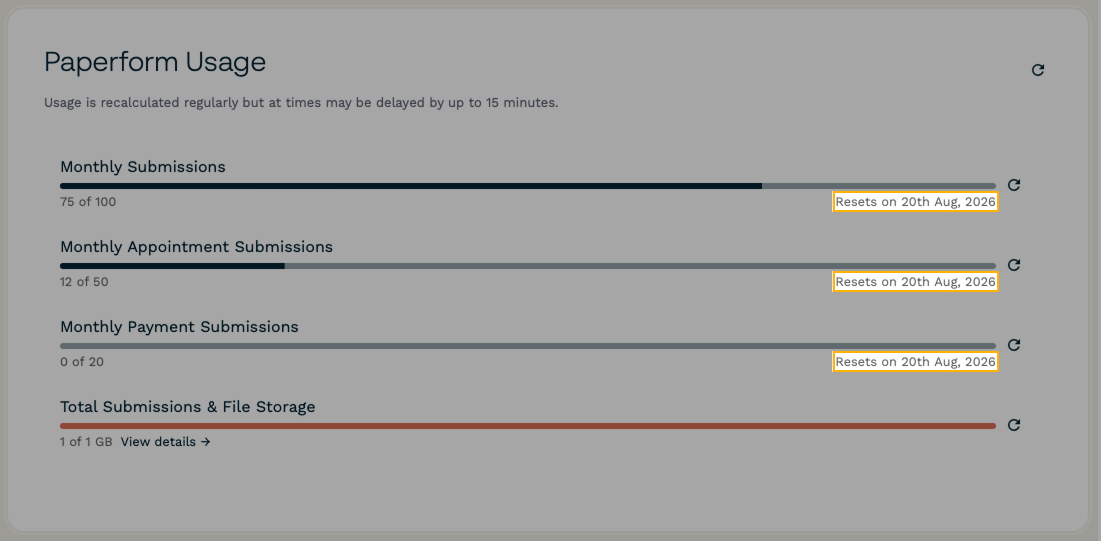
You can check your current submission or file storage usage and limits on your Account Settings → Billing under "Paperform Usage."
Usage totals are recalculated regularly, but can be delayed. You can manually recalculate the submission and file storage totals by clicking the refresh arrow to the right of the last calculated date.
You can also check the date recurring usage limits reset under each of the different segments:
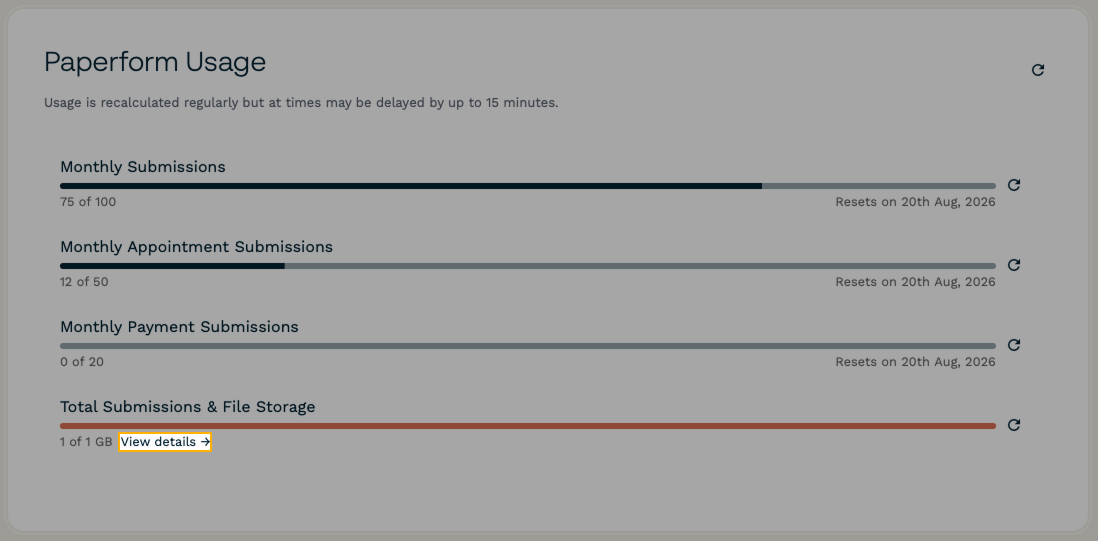
To get a breakdown of total submission storage and file storage for your forms, you can click "View details" underneath the Total Submissions & File Storage section.
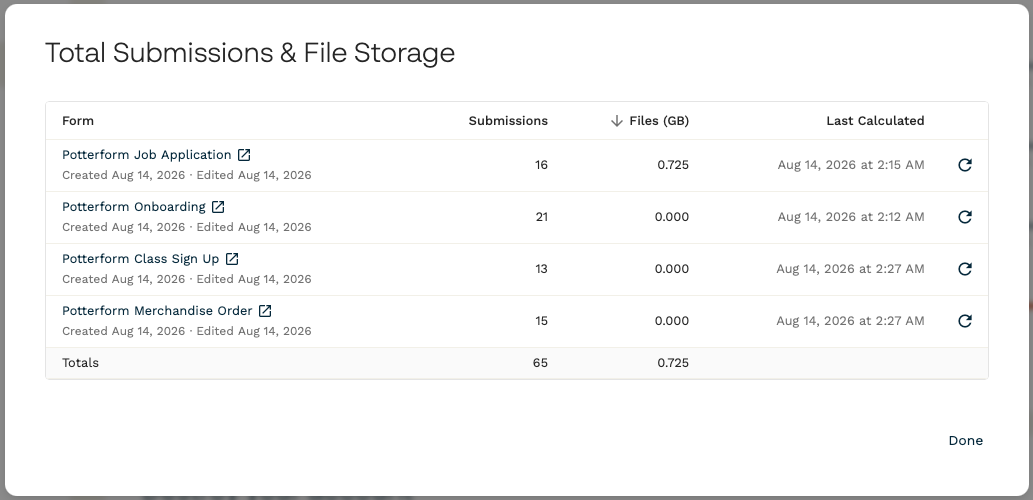
This will display a "Total Submissions & File Storage" section where all of your forms will be listed along with their current usage, as well as totals across all forms:
Note: Total Submission Storage and File Storage limits are calculated for all submissions and do not roll over at the end of each billing period. You can manage your submissions and uploaded files anytime from each form's results dashboard.
What are usage warnings?
To help keep you informed, you'll see a usage warning banner on both your dashboard and billing page if you approach or reach any usage limits. We'll also notify your team owner and admins by email.
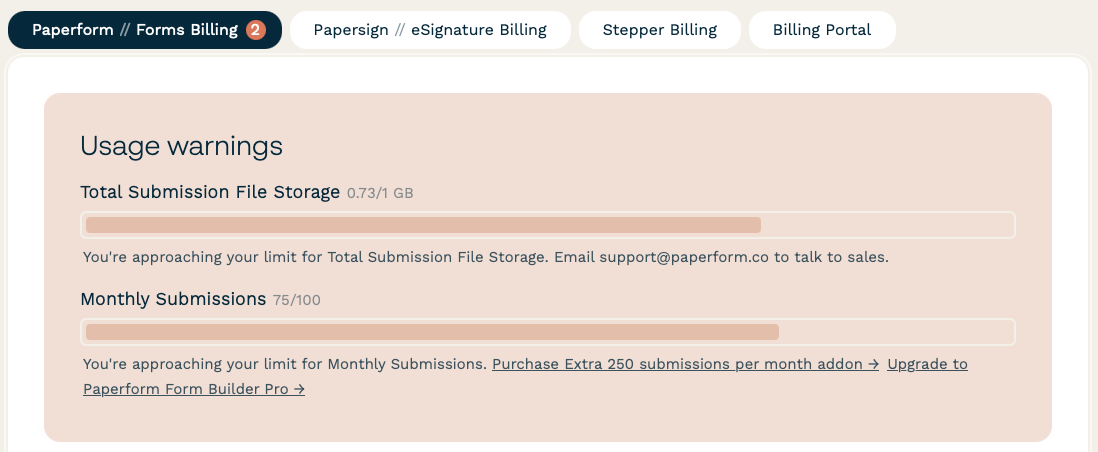
Note: Usage warning numbers update at set thresholds (50%, 75%, and 100% of your limit), not dynamically. So the number shown will always be one of those three figures, even if your actual usage is higher. For example, if you're using 84 out of your 100 submissions limit, the warning will still show 75 because you haven't reached the 100% threshold yet.
What happens if I run out of storage?
If you exceed your submission storage limit, your forms will close. You can resolve this by upgrading to a higher-tier plan with greater storage capacity or by deleting stored submissions.
If you exceed your upload storage, any forms with an image or file upload question will close. You can resolve this by upgrading to a higher-tier plan with greater file storage capacity or by deleting stored submissions that contain stored files.