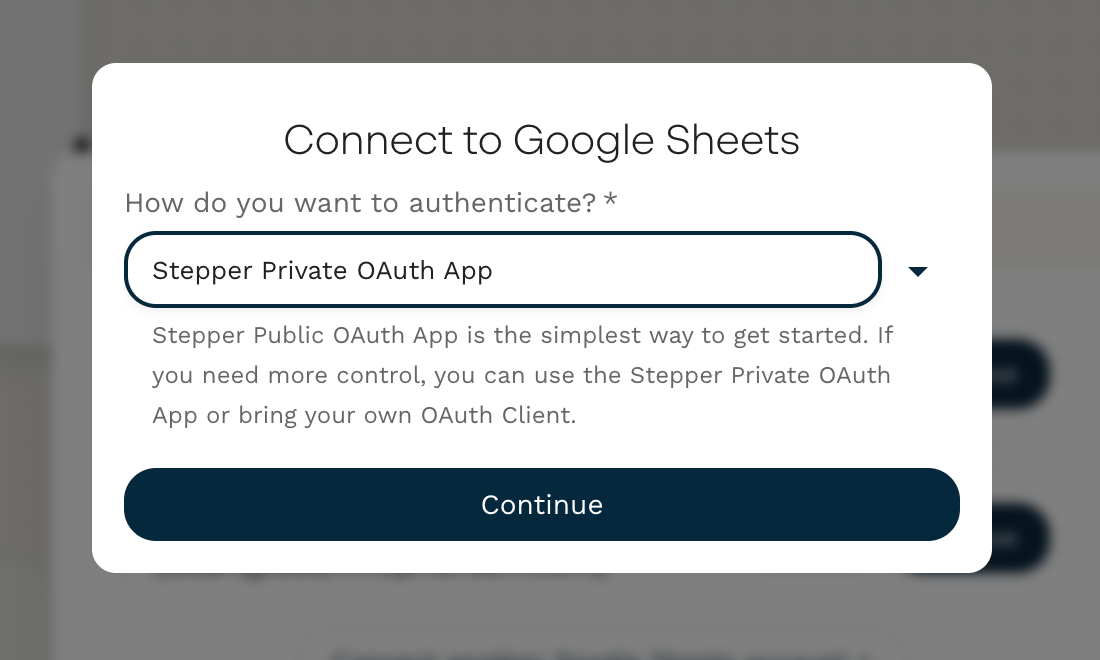
What is the Google Private Oauth for?
Some Google app integrations require a high level of access (e.g. Gmail and Google Drive). Some apps like Google Sheets have greater capabilities once they are set up.
Adding the private oauth app to your Workspace organisation means that your team will be able to freely connect their accounts to Stepper. Google’s standard oauth experience still applies, your team will explicitly see every permission before it is granted.
Access can be revoked at any time for your organisation in your Google Workspace administration dashboard.
If the private app has already been whitelisted by a Google Workspace Administrator, then you can simply follow the oauth flow. Stepper only needs to be whitelisted once.
Google Private Oauth is only available for Google Workspace customers. This is not possible with personal Gmail.
1. Go to Trusted Apps in Google Workspace admin
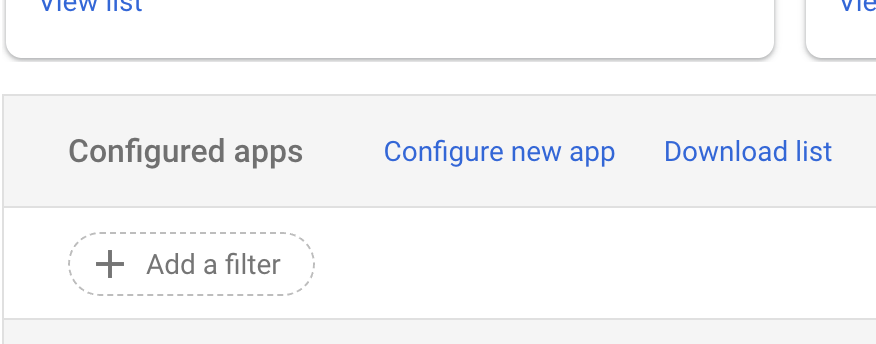
Go to https://admin.google.com/u/0/ac/owl/list?tab=configuredApps, and click “Configure new app”.
2. Search for the Stepper App ID
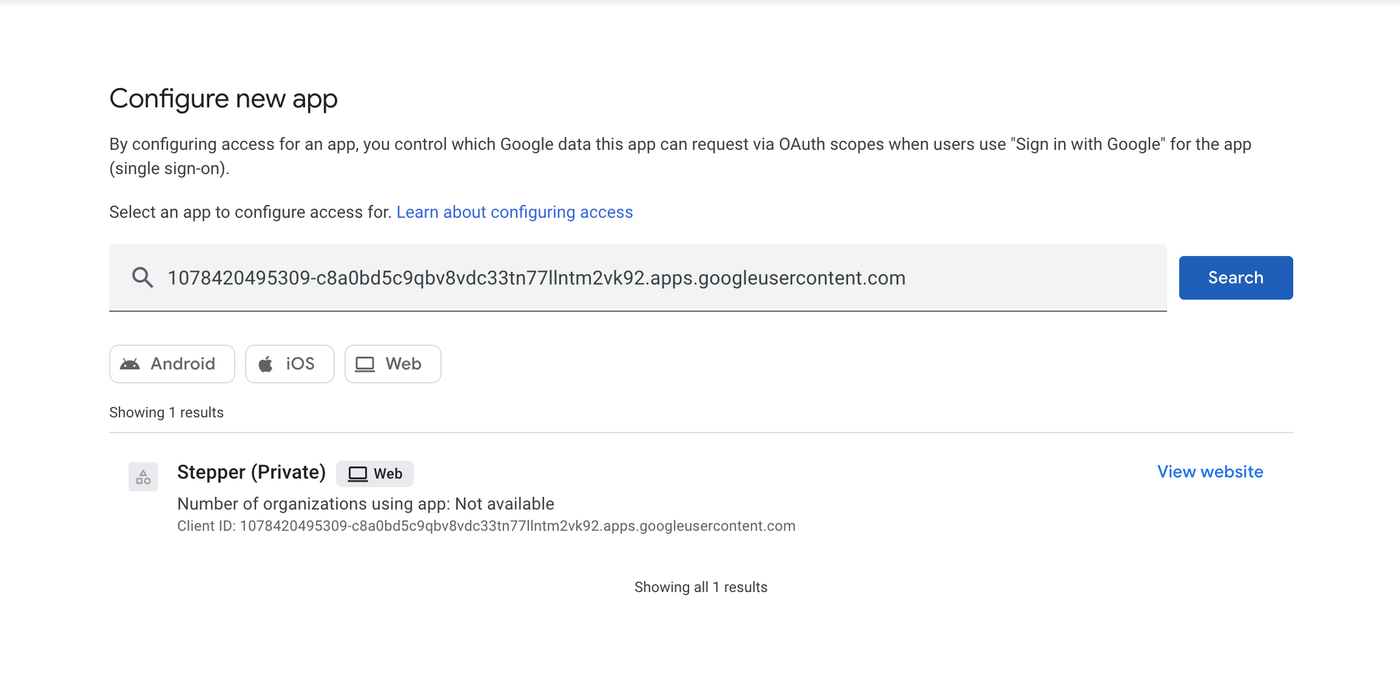
Search for the app ID 1078420495309-c8a0bd5c9qbv8vdc33tn77llntm2vk92.apps.googleusercontent.com and select it from the list.
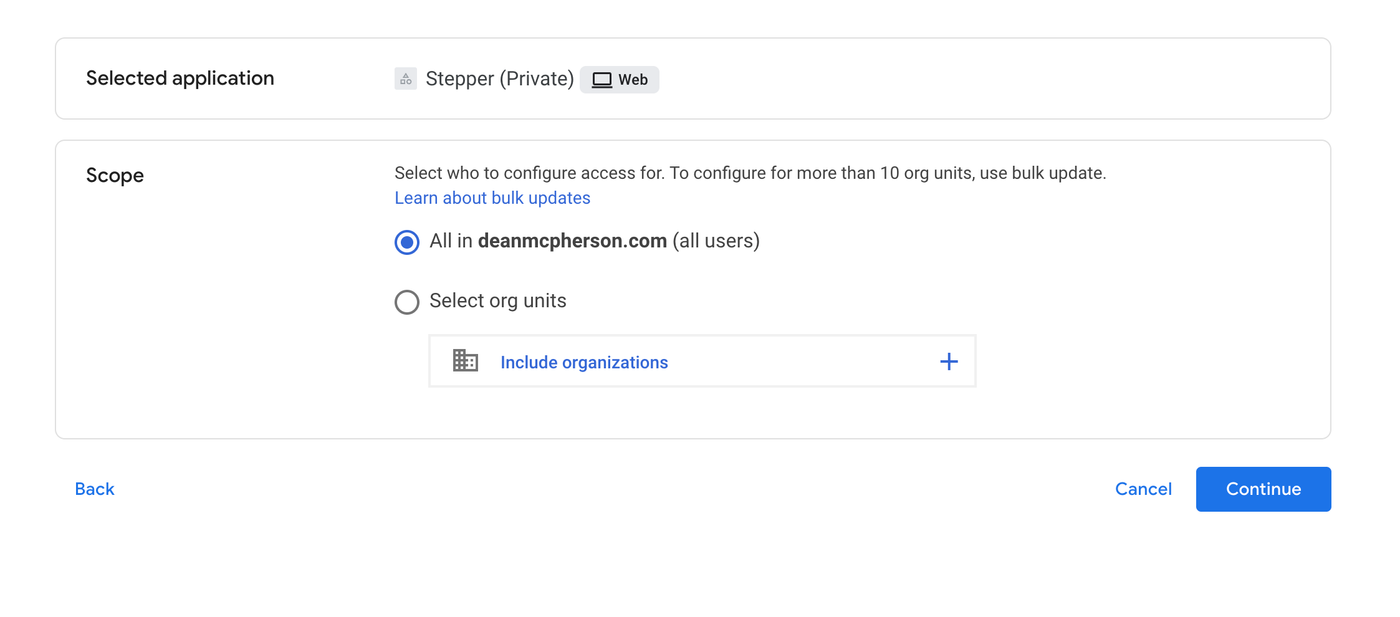
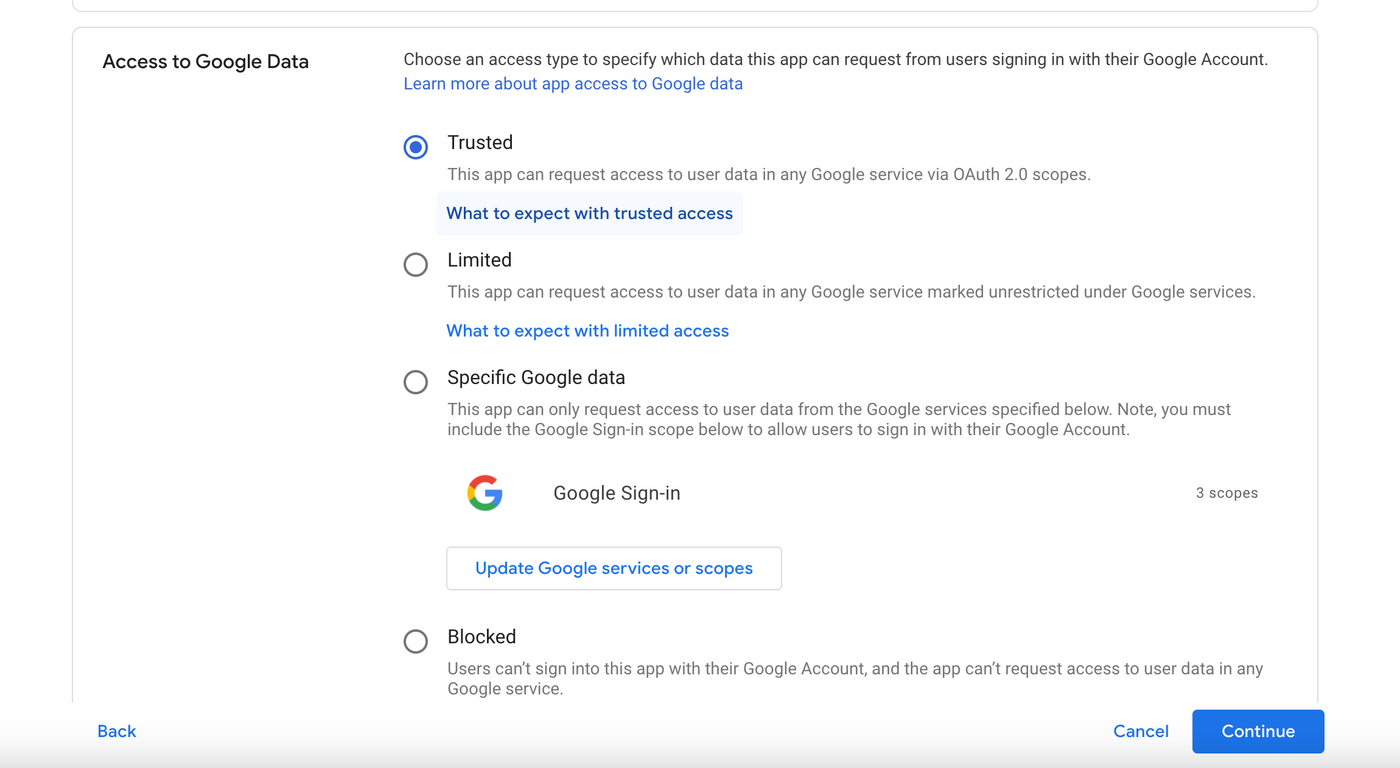
3. Follow the rest of the UI to set the desired scope, and access levels.
4. That’s it!
You’ll now see Stepper in the list of approved third party applications.

Your team will now be able to simply choose The Private Oauth App when connecting to Google services and continue through the standard oauth flow.