Perhaps you’ve spent time perfecting a workflow that runs… ok… and you’ve poured a lot of time, creativity, and care into your current setup. Stepper’s AI Assistant makes migrating to a better platform simple, which means you don’t have to rebuild what you’ve already worked hard to create.
Let’s dive into into how to transfer your workflow from another platform into Stepper.
Exporting Your Workflow
To make different services communicate with each other, most automation platforms rely on JSON (JavaScript Object Notation), a data format used to connect with APIs. Below are instructions on how to export your workflow as a JSON file from a few popular automation platforms:
Make
You can export your Make Scenario by clicking the three-dot menu on the bottom bar of the Scenario Builder screen.
- Click Export Blueprint.
- Check your downloads folder.
- Open the JSON file and copy its contents.
Zapier
Zaps can be found in the Data Management section.
- Click your profile icon on the upper right-hand corner.
- Click Security and Data.
- Click the download icon in the “Download my Zaps” setting.
- Choose a location on your local drive and save the file.
- Open the JSON file and copy it’s contents.
Some Zapier accounts don’t allow for individual zaps to be downloaded. In that case, you can:
- Click your profile icon on the upper right-hand corner.
- Click Security and Data.
- Click Download all private and shared Zaps.
Zapier will then email you a Zip file that contains your requested JSON file(s).
n8n
From the editor, you’ll see a horizontal three-dot menu on the upper right-hand corner.
- Click the dots.
- Click Download.
- Check your downloads folder, and open the JSON file.
You can also highlight all of the nodes in the canvas and click CTRL + C on your keyboard to copy the JSON.
Importing the JSON
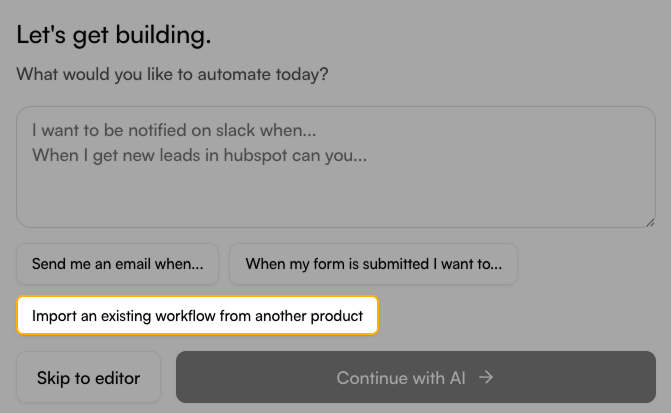
Once you’ve copied the JSON, head over to Stepper and click "Create New Workflow" to start a new conversation with the AI assistant. You can then click, “Import workflow from another product.”
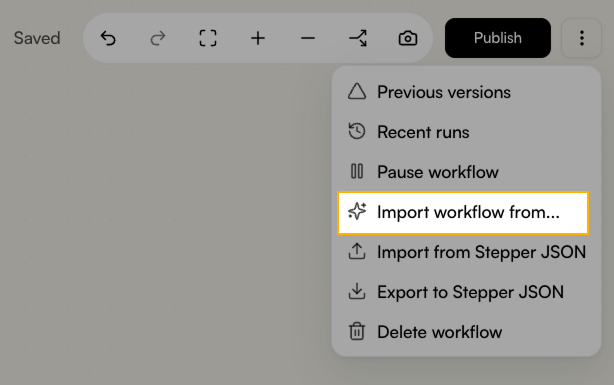
If you’re already in the editor, click the vertical three-dot menu in the upper right-hand corner of the editor, and choose “Import workflow from…”
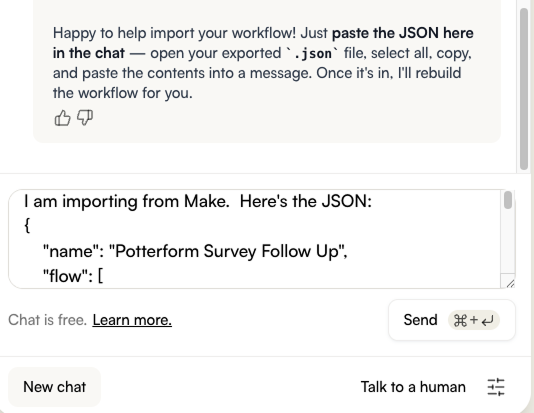
This will open up a dialogue with the Stepper AI assistant, where you can paste the copied text into your prompt. Here’s an example prompt:
From there, the assistant may ask some clarifying questions and require authorization for certain connections but for the most part, the hard work is done. You can sit back and let Stepper handle the rest!