From time-to-time, you may find it necessary to temporarily pause a workflow or run to make changes to it, troubleshoot it, or just take a break.
Pausing workflows vs runs: what’s the difference?
Pausing a workflow prevents future runs, while pausing a run affects a process that’s already in progress.
Pausing a workflow prevents it from running when its trigger step is activated. While paused, the workflow won’t listen for new triggers until you turn it back on.
Pausing a run, on the other hand, halts a process that is currently executing. You can resume it later from where it left off. If you choose to stop it instead, the run will be permanently terminated. This action cannot be undone.
Note: You can only pause a workflow or run if it’s currently active.
How do I pause a workflow?
Option 1
- Open the workflow you’d like to pause.
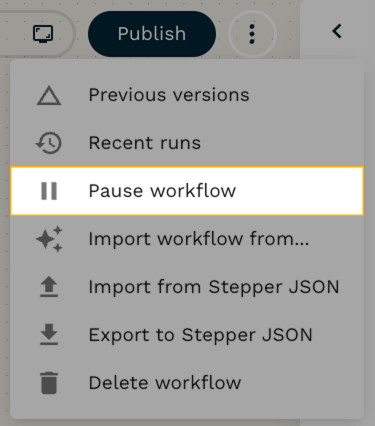
- Click the three-dot menu in the top-right corner.
- Select Pause workflow.
Option 2
- Find your workflow.
- Click Edit
- Click the three-dot menu and then Recent runs**.**
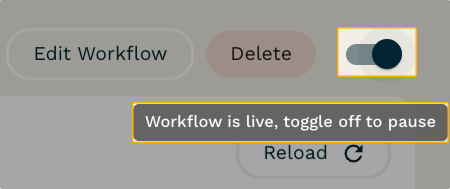
- Toggle it off to pause the workflow.
You can check the status of your workflow at any time from the Stepper dashboard.
How do I Pause or Stop a Run?
-
Click Runs next to your workflow in the Dashboard**.**
-
Select the run you want to manage.
-
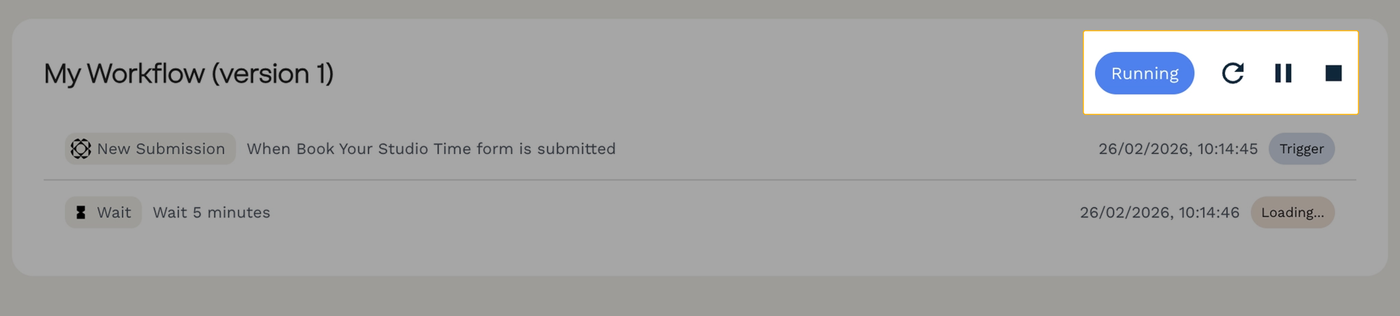
Choose one of the following:
- Pause to temporarily stop the run.
- Stop to permanently terminate the run.
You can check the run’s status at any time by returning to the Recent Runs page.