What are Stepper Teams?
Stepper Teams, exclusive to Paperform Platform plans, lets multiple people build or manage workflows, keeping them organized and accessible to the right group.
How do I add Stepper team members?
Once you have a Platform subscription, you can manage your team members on the Accounts → Manage Team Members page.
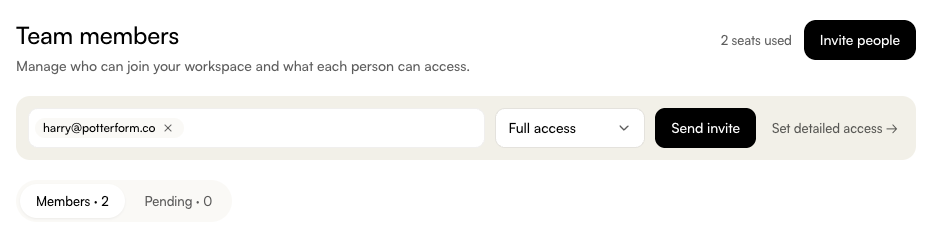
- Click “Invite People” in the upper right-hand corner.
- Enter your teammate’s email address in the Invite by email text box.
- Choose their level of access (Definitions of each access tier are in our Managing Users and Teams guide.)
- Click “Send invite.”
The teammate will then receive an email with a link to create their Stepper sub-user account.
Working Together
For the best results, work on Stepper workflows one at a time. If you're collaborating with a teammate at the same time, your changes won't merge with theirs; the most recent save will replace what was there before. Refresh the workflow before editing it to make sure you're working from the latest version.
Stepper users will only be able to see and automate forms and documents that are in the same workspace by default. To automate the form or document, a team admin will want to move the form or document to the same space.
Connections & Webhooks
There are two types of connections and webhooks:
- Public - useable for everyone on the team.
- Private - only useable for you.
If you’d like to make a private connection or webhook public, you can click the three-dot menu to the right of it, select “Sharing,” then toggle on “Shared with everyone on your team.” Click confirm and the app or webhook will pop up under the Public category.
AI Assistant Chat
Your AI Assistant chats are private. Teammates working on the same workflow won't see them.
Skill Sets
Stepper Skill Sets are also separate per user.
Leaving the Team
If someone is removed from your team (or leaves it), their workflows stay put but their Stepper credentials are revoked along with their account. No one inherits what they had connected, so any connections, webhook triggers, or skill sets tied to their account stop working immediately.
The account owner will receive an email listing exactly which connections, webhooks, and skill sets were impacted. To get these workflows running again, set up the same connections, webhook triggers, or skill sets under their account, then map the affected steps to them.
If you need any help while collaborating with your team, our support team is happy to help.