How can I connect my Stepper account to another Paperform team as a sub-user?

Integrations

Adobe Creative Cloud App Integration OverviewCan I make an automatic phone call upon form submission?Can I send an SMS with Paperform?Can we resend integration actions and webhooks?What are direct integrations?Does Paperform have an API?How can I connect my Stepper account to another Paperform team as a sub-user?My direct integration isn't working, what do I do?How do I connect my Adobe account to Paperform?How do I connect my other apps to Paperform?How do I use Zapier?How do I integrate with Airtable?How do I integrate with Discord?How do I integrate with Klaviyo?How do I integrate with monday.com?How do I integrate with Notion?How do I remove a direct integration account?How do I use direct integrations?How do you turn off a direct integration?What are webhooks and how do I use them?How do I integrate with Campaign Monitor?How do I integrate with Constant Contact?How do I integrate with ConvertKit?How do I integrate with Drip?How do I integrate with Dropbox?How do I integrate with Google Sheets?How do I integrate with Help Scout?How do I integrate with Intercom?How do I integrate with Keap (Infusionsoft)?How do I integrate with Mailchimp?How do I integrate with MailerLite?How do I integrate with Meistertask?How do I integrate with Moosend?How do I integrate with Trello?How do I integrate with Zendesk?How do I integrate with Zoho CRM?Quick IntegrationsHow do I use Zapier Filters?How do I use Zapier Formatter?What is Make and how do I use it?What services do you integrate with?WordPress Plugin

When collaborating with others, you may need to build a Stepper workflow using a form owned by another Paperform team member. This article outlines how to connect a sub-user Stepper account to the Paperform account that owns the form.

Note: The following instructions are for sub-users of a Paperform account. For more information about sub-users, please see our Manage Users and Teams Guide.

Connect Your Stepper Workflow to another Paperform Team

  1. Login to Paperform and switch to the team that contains the form you’d like to create a Stepper workflow with.

    You can do this by either clicking on the profile picture in the upper right-hand corner of the screen and clicking the team you’d like to switch to or by clicking the team initials on the left-hand side of the screen.
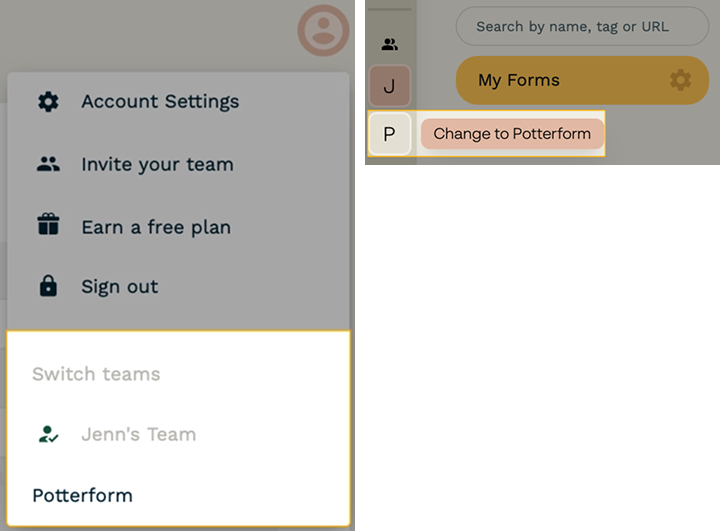
    Screenshot of switching teams options: The accounts menu is on the left, initials option is on the right.
  2. Navigate to the Account Settings → Developer page.

  3. Click Create Access Token.

  4. Give the Access Token a name and click Ok.
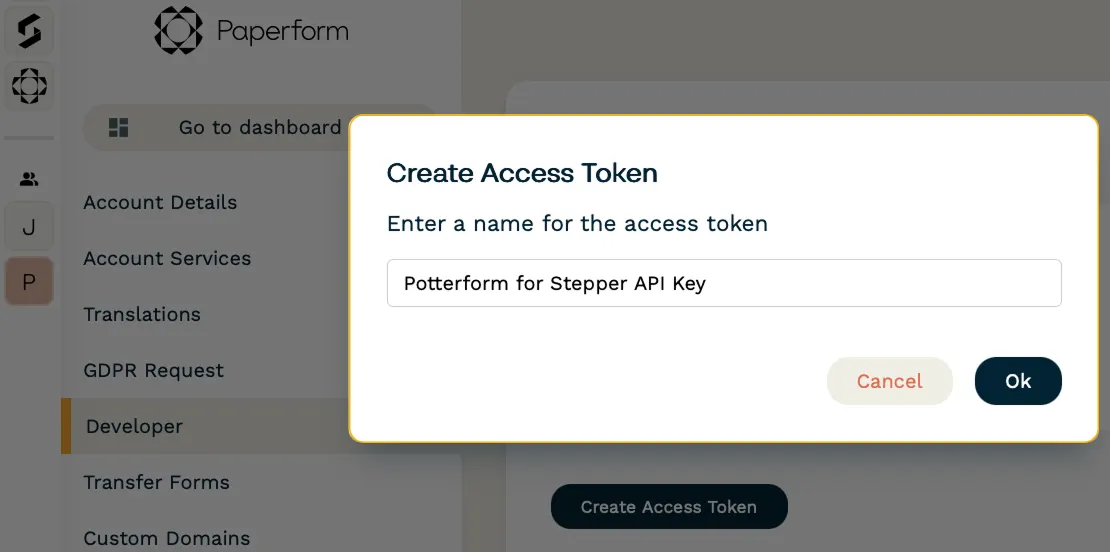
    Screenshot of the Create Access Token option.

    You'll then be presented with an API key.

    Do not share this API key. API keys are to be treated like passwords and kept secure.

  5. Copy the API key.

  6. Switch back to your own personal Paperform account.

  7. Open Stepper.

  8. Click Connections.

  9. Click New Connection.

  10. Click Paperform.

  11. Paste the API Key in the API key field and click Continue.

If successful, the new connection will show up and the status will be valid:

Screenshot of the Connections page showing a valid Paperform account connected.

From here, you can build workflows using the forms you have access to from the other Paperform team.