
Google Forms lets you add a header image, but it forces you to crop it to a fixed 1600x400 pixel ratio (4:1). There's no auto-resizing, no stock image library, and the header is the only visual element you can customise beyond basic colour and font choices. If you want a form that looks like it belongs to your brand, rather than Google's, you'll need to either wrestle with external image editors or use one of these Google Forms alternatives designed for customisation.
This guide covers how to add and resize a header image in Google Forms, the design limitations you'll run into, and how to build branded forms for free with a tool that treats design as a feature, not an afterthought.
How to add a header image to your Google Form
Adding a header image takes a few clicks, but getting it to look right is a different story.
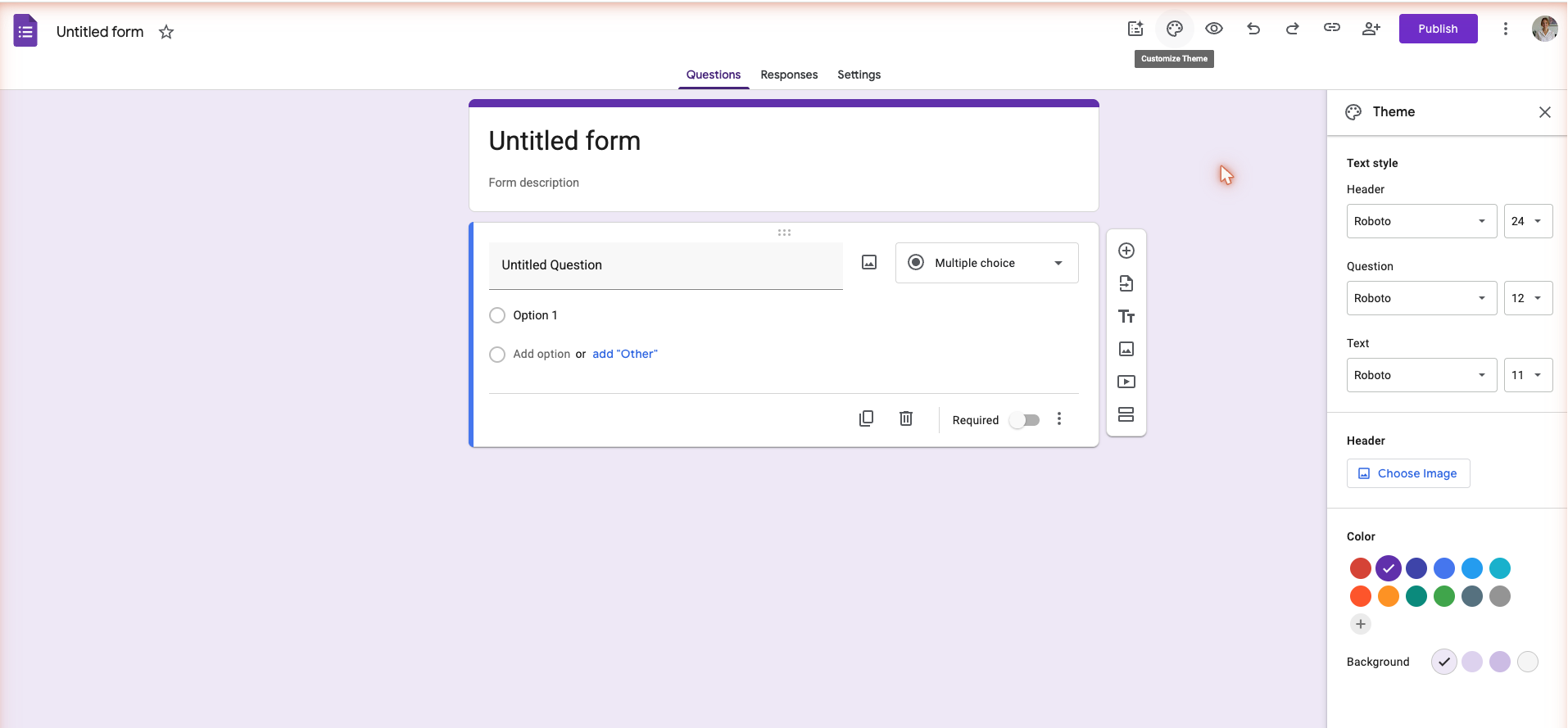
Step 1. Open the theme menu
Click the paint palette icon in the top-right corner of the Google Forms editor. A sidebar will appear on the right side of the page with options for theme colour, background colour, and font.
Step 2. Choose an image
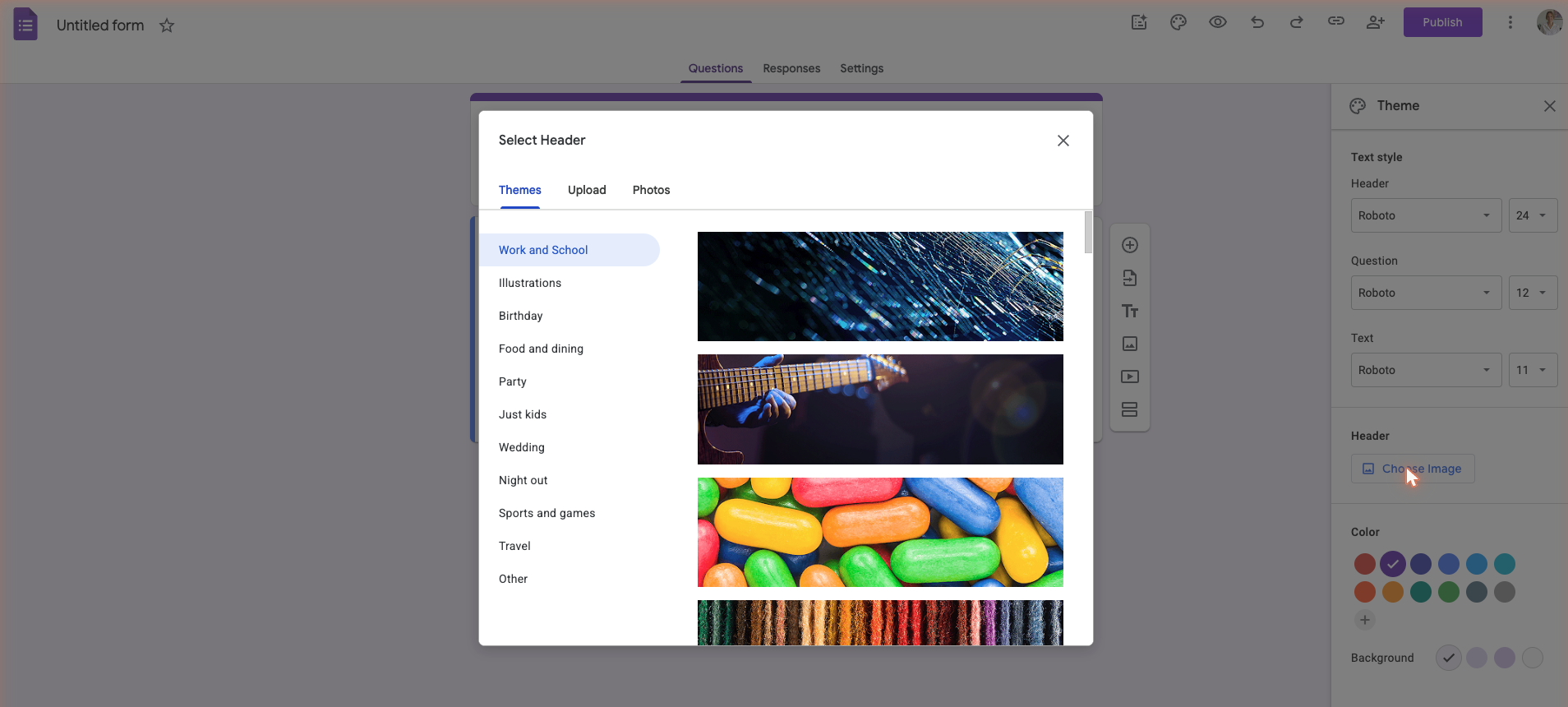
Click Choose image at the top of the sidebar. Google gives you three options: pick from a library of preset images, upload from your desktop, or import from Google Photos. If you select one of Google's preset images, you're done. These are pre-cropped to the required 4:1 aspect ratio and slot into the header without any editing.
Step 3. Crop your custom image (if uploading your own)
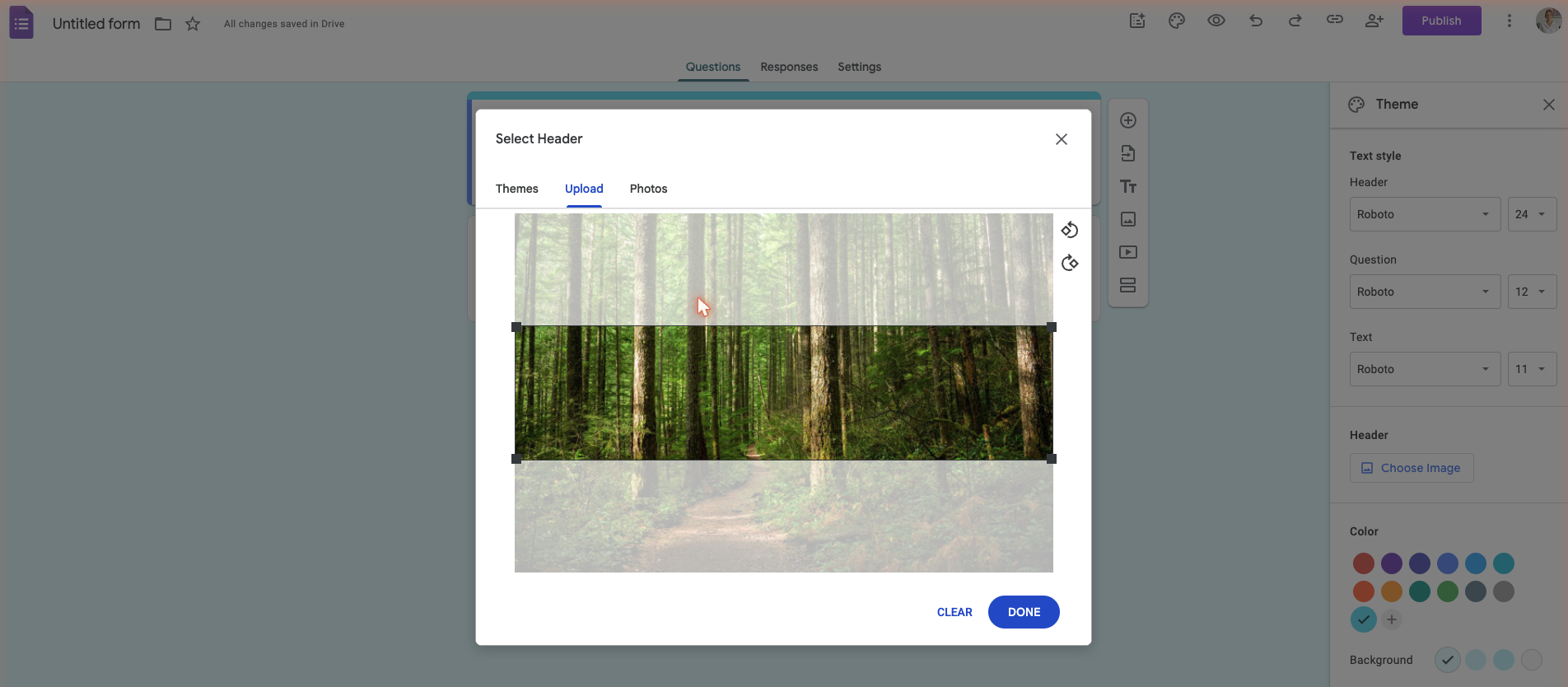
If you upload your own image, Google Forms opens a cropping tool locked to a 4:1 ratio. You'll lose a large portion of whatever you're trying to display. A photo gets its context cropped out. A logo gets its edges sliced off. The result is rarely what you had in mind.
Step 4. Adjust your colour scheme
Google Forms sometimes updates the theme colour to match your uploaded image. When it doesn't (particularly with black-and-white images), you'll need to manually set the theme and background colours from the sidebar to avoid clashing.
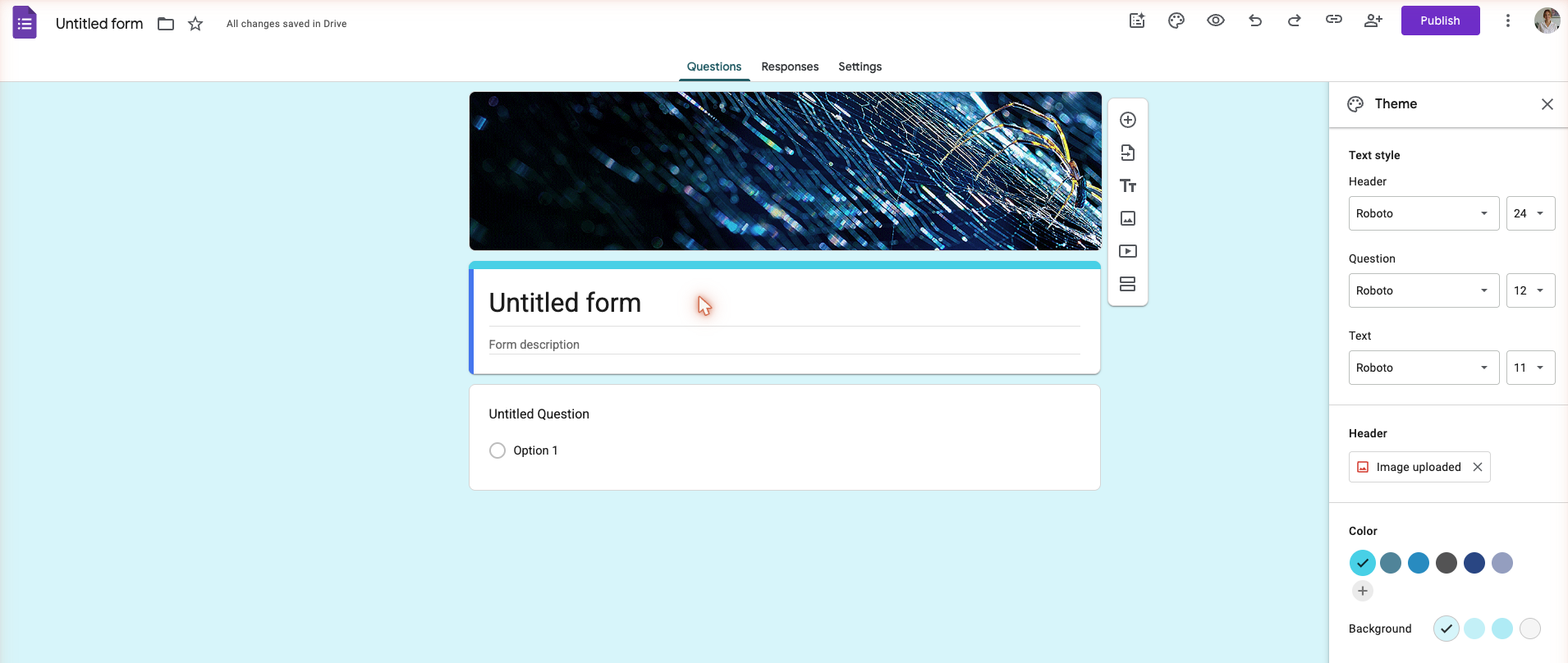
That's as far as the customisation goes. You can change the font from a selection of four presets, but there's no control over font size, spacing, layout, or any other visual element.
How to resize a custom header for Google Forms
The recommended Google Forms header image size is 1600 pixels wide by 400 pixels tall (a 4:1 aspect ratio). If your image doesn't match these dimensions, it will be cropped automatically, and the result is unpredictable.
To get it right, you'll need to open a separate tool (Canva, Figma, or any image editor), create a canvas at 1600x400, place your logo or image inside it, and export. It adds a few minutes to a task that should take seconds, and it's a step you'll repeat every time you want a different header.
Why Google Forms' design options fall short
The header image issue is a symptom of a bigger problem: Google Forms treats design as an afterthought. Here's where that shows up.
1. No automatic image resizing
Every custom header image needs to be manually cropped to 1600x400 before uploading. There's no drag-and-drop resizing, no auto-fit, and no way to adjust positioning after the image is placed.
2. The header is the only visual element you can customise
Google Forms gives you one image slot: the header banner. You can't add images between questions, use background images, embed videos inline, or place visual content anywhere else on the form.
3. Theming is limited to colour and four fonts
Beyond the header image, your design options are one theme colour, one background colour, and a choice of four fonts. Your form will always look and feel like a Google Form.
4. No access to stock image libraries
You can upload from your desktop or pull from Google Photos, but there's no built-in library of stock photos, icons, or design assets.
How to build branded forms for free with Paperform
If you already have a Google Form, you don't need to start over. Paperform's Google Forms import tool converts your existing form automatically. Paste your form link, and Paperform rebuilds the structure for you. From there, you can add images, apply your brand colours, and design the form however you want.
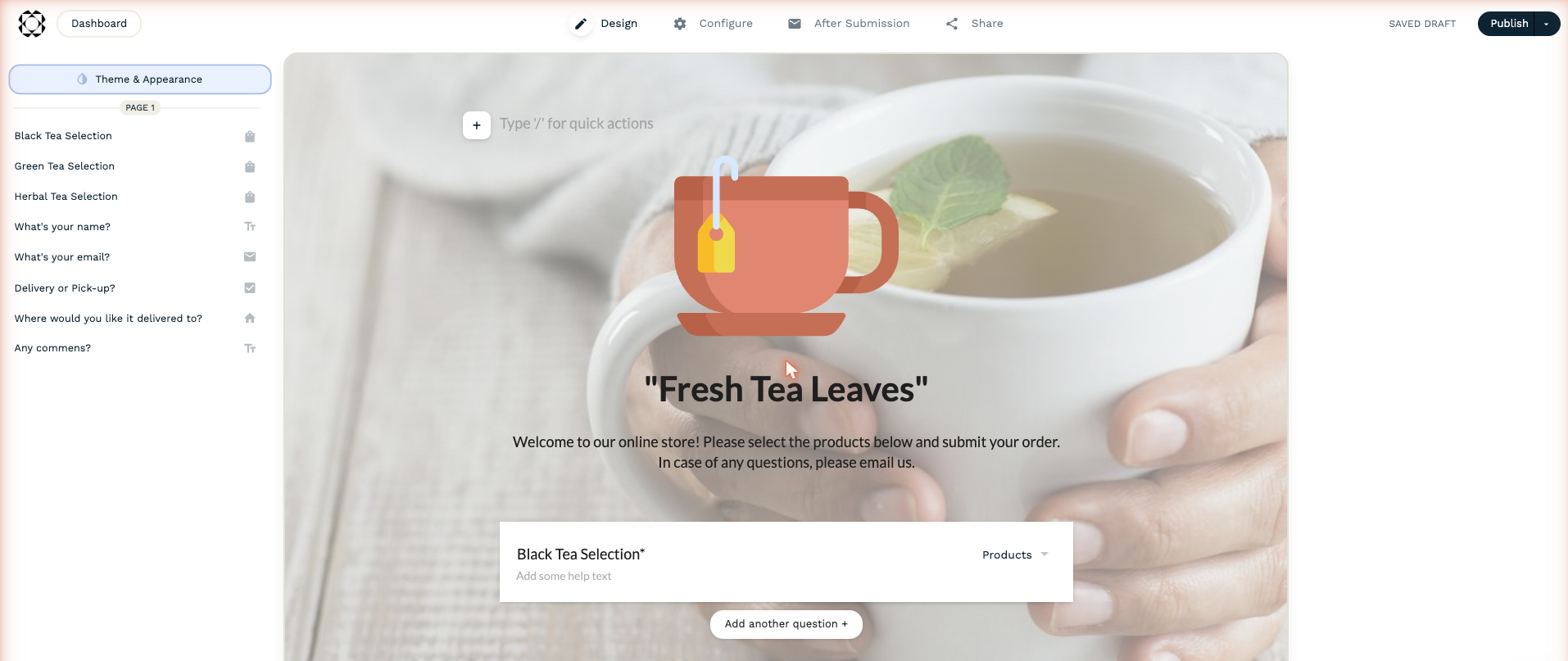
Paperform is a form builder and digital toolkit for small businesses that combines form creation, payments, scheduling, and automation in one platform. Unlike Google Forms, Paperform uses a document-style editor where your entire form is a designable page, not a locked template with a single image slot.
Images, GIFs, and videos can go anywhere on your form (between questions, as backgrounds, inline with content) and they resize automatically. No external editors, no fixed aspect ratios.
How the design experience compares
| Google Forms | Paperform (free plan) | |
|---|---|---|
| Header image | Manual crop to 4:1 required | Any image, auto-resized |
| Images in form body | Not supported | Drag and drop anywhere |
| Stock image library | None | Unsplash and Giphy built in |
| Design asset libraries | None | Adobe Creative Cloud integration |
| In-app image editing | None | Crop, rotate, filter, annotate |
| Videos and GIFs | Not supported inline | Embed anywhere in the form |
| Font options | 4 presets | Full font library |
| Layout control | Fixed template | Document-style freeform editor |
What else does the free plan include
Every feature in the table above is available on Paperform's free plan, along with:
- Unlimited forms with up to 30 submissions per month
- Conditional logic for questions, content, and pages, so you can show different sections to different respondents
- Guided mode for a one-question-at-a-time experience
- Payment processing through Stripe, PayPal, Square, Braintree, and Google Pay (5 payment submissions/month)
- 2,000+ integrations through native connections, Zapier, and Make
- Answer piping to personalise form content based on previous responses
- A template gallery with hundreds of professionally designed starting points
For teams that need full brand control (custom CSS, custom domains, and analytics), those features are available on the Pro plan.
Frequently asked questions
What size should a Google Forms header image be?
The recommended size is 1600 pixels wide by 400 pixels tall, which is a 4:1 aspect ratio. If your image doesn't match these exact dimensions, Google Forms will crop it automatically using a fixed-ratio cropping tool. You can't adjust the positioning after cropping, so it's best to resize your image in an external editor before uploading.
Can you add images to the body of a Google Form, not the header?
No. Google Forms only supports a single image in the header position. You can add images as individual questions (using the image question type), but you can't place images freely between questions, use them as backgrounds, or embed them inline with other content. Form builders like Paperform use a document-style editor where images can be placed anywhere.
Does Google Forms resize header images automatically?
No. Google Forms requires images to match a 4:1 aspect ratio (1600x400 pixels). If your image is a different size or shape, you'll need to manually crop it in an external tool like Canva or Figma before uploading. There's no auto-resize or auto-fit feature.
Can you use custom fonts in Google Forms?
Google Forms offers four preset font options. You can't upload custom fonts, adjust font sizes, or control typographic details like line spacing or letter spacing. For more font options and granular design control, you'd need a form builder with a more flexible theming system.
Is Paperform's image editor available on the free plan?
Yes. Paperform's in-app image editor is included on the free plan. It supports cropping, rotating, filters, and annotations, so you can make quick edits without leaving the form builder. The free plan also includes access to Unsplash and Giphy for sourcing images, and Adobe Creative Cloud for importing design assets from your existing libraries.
How do I migrate my Google Forms to Paperform?
Use Paperform's Google Forms import tool (linked at the top of the Paperform section above). Paste your Google Form link and Paperform recreates the form structure automatically, so you can jump straight into customising the design instead of rebuilding from scratch.
Weighing up whether Google Forms' design limitations are worth working around? Read the full Paperform vs Google Forms comparison to see how they differ across design, features, pricing, and integrations.