Paperform includes several AI-powered tools designed to help you create forms faster, simplify more complex configuration tasks, and get more value from your submission data. This guide covers AI Form Creation, AI Calculations, and AI Insights, and how to use each tool to help make building and managing your forms easier.
AI Form Creation
Starting a new form can sometimes feel like staring at a blank canvas: full of potential but not always easy to know where to begin. With AI Form Creation, included in specific price plans, you can start by entering a prompt describing the form you want to build, and the AI assistant will ask you a few tailored questions before generating a styled draft ready for you to review.
Here's an example prompt to get things started:
Create an NPS Survey for my pottery classes.
The AI Assistant responds with a few clarifying questions before creating the form:
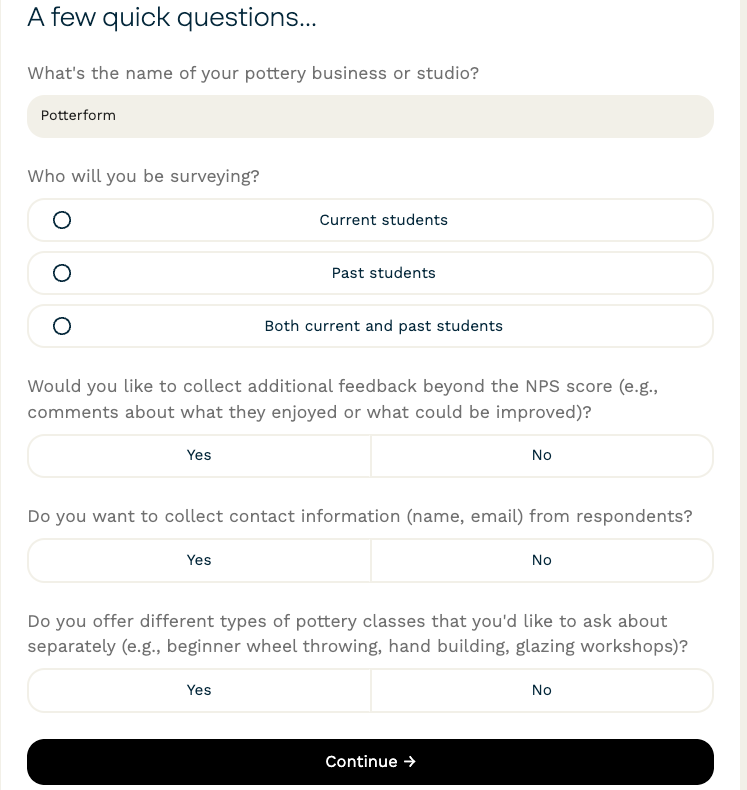
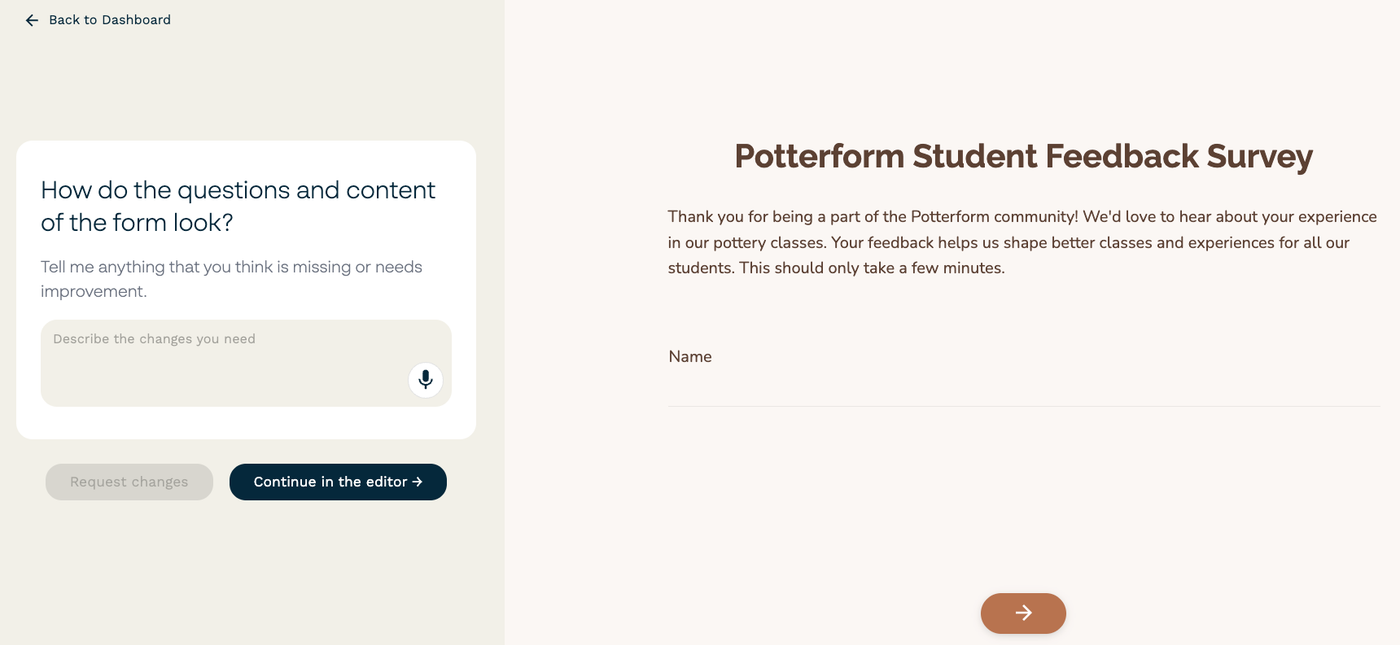
Once the questions have been answered, a preview of the new form will be generated and displayed. From there, you can request further changes or jump straight into the editor to finish it off yourself.
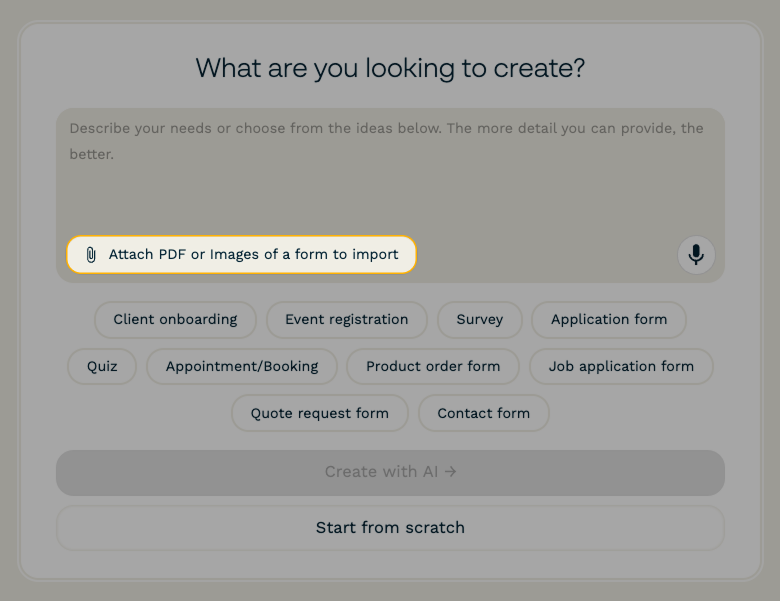
AI Form Creation also allows you to upload an existing PDF form or image that you’d like to convert into a Paperform. This is particularly useful if you’re looking to convert physical forms or migrate your existing forms from another platform.
To upload a PDF file or image, click the paperclip icon below the prompt window:
Once the AI Form Creation assistant has created the form, you will be presented with a preview for your review.
AI Calculations
Calculation fields are powerful and functional. Manually writing formulas for them can be time-consuming if you’re new to calculations or working with a more advanced form.
With AI Calculations, included in specific price plans, you describe what you want the calculation to do in plain language, and the AI generates the formula for you. It’ll also explain how the formula works before you apply it, so you know exactly what’s happening.
For example, if your form includes several scale questions, you could create a calculation field and prompt the AI with something like:
Calculate the average score from the scale questions to create an overall NPS score.
The AI Calculation assistant will create the formula and walk you through what each step does. Once you’re happy with the result, select Apply to add it to the formula editor on the left.
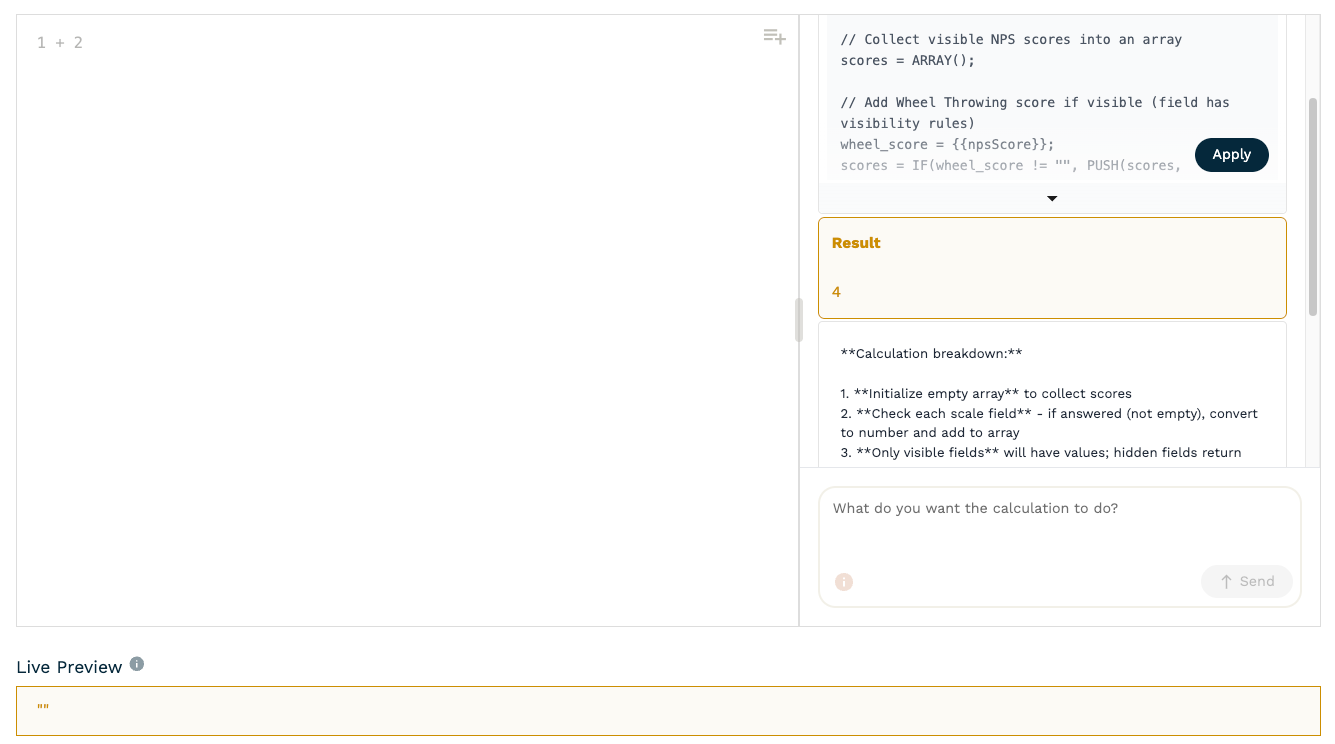
Tip: If your calculation isn't working as expected, try using the Fix button to the left of the Send button to automatically resolve syntax or logic errors. You can also use the Format button to tidy up the formula for easier reading.
AI Insights
Once your form has collected some submissions, AI Insights can help you interpret the data quickly without having to comb through endless rows of responses.
To access AI Insights:
- Navigate to the Results section of your dashboard, next to your form.
- Select the Reports tab.
- Click the Insights button below a report section.
- Enter a question in the prompt area.
For example:
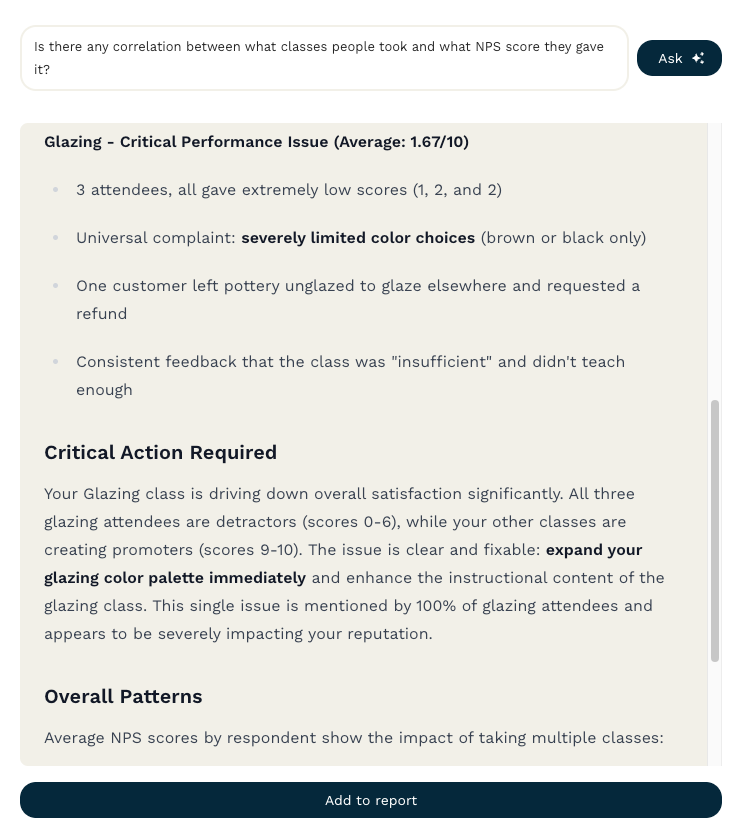
Is there any correlation between what classes people took and what NPS score they gave it?
AI Insights will analyze the available submission data and return a response that can help you spot patterns, trends, or useful next steps. You can then add insights directly to your report for easy reference later.
Automating Next Steps with AI
You could take things a step further by integrating your form with Stepper (Paperform’s AI-native workflow builder) to trigger automated actions before a submission is received or after it comes in.
For example, you could create a workflow that sends a discount coupon to respondents who leave a high NPS score. You could also follow up with customers who leave a low NPS score, providing them with an opportunity to share more feedback about their experience.
Automations are a great way to turn form submissions into practical next steps, reducing the need to manually review and act on every response.