Google Forms vs Microsoft Forms: Which Is Better in 2026?
Google Forms and Microsoft Forms are nearly identical products built for nearly identical purposes -- free data collection tools bundled with their respective productivity suites. They look similar, work similarly, and share the same core limitations. The real question isn't which form builder is better in isolation. It's which ecosystem your organisation already lives in, because that answer almost always decides this comparison before you even evaluate features.
That said, there are genuine differences worth understanding. Google Forms has a slight edge in quiz features and operates with no response cap on personal accounts. Microsoft Forms integrates with Power Automate for workflow automation and embeds natively in Teams and SharePoint. Both are free (with caveats), both lack payments and advanced design, and both hit the same ceiling when professional needs outgrow basic data collection.
This comparison is for teams evaluating which ecosystem tool to standardise on -- or for individuals who have access to both and want to know which offers more. If you already know you need payments, branding, conditional logic, or professional form design, neither of these tools is the answer, and you should look at dedicated form builders instead.
Quick Verdict
Choose Google Forms if:
- Your organisation uses Google Workspace
- You need unlimited responses on free personal accounts
- You use Google Classroom for education
- You want the simplest possible form builder
- You need Google Sheets as your response destination
Choose Microsoft Forms if:
- Your organisation uses Microsoft 365
- You need Power Automate workflows triggered by form submissions
- You want to embed forms in Microsoft Teams channels
- You use SharePoint and need native form embedding
- You need Excel as your response destination
Feature Comparison
These two platforms are remarkably similar in capability. The differences are subtle and primarily relate to ecosystem integration rather than form-building features. The table below shows where they align and where they diverge.
| Feature | Google Forms | Microsoft Forms |
|---|---|---|
| Form Building | ||
| Document-style editor | No | No |
| AI form creation | Yes | Yes copilot |
| Field types | 11 | No |
| Multi-page forms | Yes | Yes |
| Guided mode (one question at a time) | No | No |
| Conditional logic | Yes | Yes |
| Calculations field | No | No |
| AI calculations assistant | No | No |
| Scoring | Yes | Yes |
| Answer piping | No | No |
| Pre-filling and hidden fields | Yes | No |
| Save and resume | No | No |
| Auto-close by number | Yes | Yes |
| Auto-close by date | Yes | Yes |
| Appointment/booking field | No | No |
| Signature field | No | No |
| Color picker field | No | No |
| API-powered dropdowns | No | No |
| Google address search | No | No |
| File uploads | Yes | No |
| Payments | ||
| Stripe payments | No | No |
| PayPal payments | No | No |
| Square payments | No | No |
| Braintree payments | No | No |
| Google Pay | No | No |
| Product sales (eCommerce) | No | No |
| Subscriptions | No | No |
| Coupons and discounts | No | No |
| Custom pricing rules | No | No |
| Tax calculations | No | No |
| Quotes/invoices | No | No |
| Refunds | No | No |
| 3D Secure | No | No |
| Design & Customization | ||
| Template gallery | 20+ | Yes |
| Rich media (images, GIFs, videos) | Yes | Yes |
| Unsplash and Giphy integration | No | No |
| Image editor | No | No |
| Adobe Creative Cloud | No | No |
| Language translation | No | Yes |
| Advanced theming | No | No |
| Custom form URL | No | No |
| Custom domains | No | No |
| Custom HTML & CSS | No | No |
| Remove branding | No | No |
| Custom email domains | Yes Business Starter | No |
| Analytics | ||
| Submission results and reports | Yes | Yes |
| AI report insights | No | Yes |
| Paperform analytics | No | No |
| Google Analytics & Facebook Pixel | No | No |
| Custom analytics scripts | No | No |
| Partial submissions | No | No |
| Collaboration | ||
| Multi-user accounts | Yes | Yes |
| User permissions and management | Yes | Yes |
| Advanced permissions & admin | Yes Business Starter | Yes enterprise |
| Form sharing (templates) | Yes | Yes |
| Spaces and tag management | No | No |
| Security | ||
| SOC 2 Type II | Yes | Yes |
| GDPR compliant | Yes | Yes |
| SSL encryption | Yes | Yes |
| Two-factor authentication | Yes | Yes |
| Enforce 2FA for all users | Yes Business Starter | Yes enterprise |
| SSO (SAML) | Yes Business Plus | Yes |
| reCAPTCHA | No | No |
| Local data residency | Yes Business Plus | Yes enterprise |
| Custom S3 storage (BYO) | No | No |
| Integrations & API | ||
| Native integrations | No | No |
| Zapier | Yes | No |
| Make (Integromat) | Yes | No |
| Webhooks | No | No |
| Standard API | Yes | No |
| Business API | No | No |
| WordPress plugin | No | No |
| oEmbed support | No | Yes |
| 2000+ integrations | No | No |
Where Google Forms Wins
No Response Cap on Personal Accounts
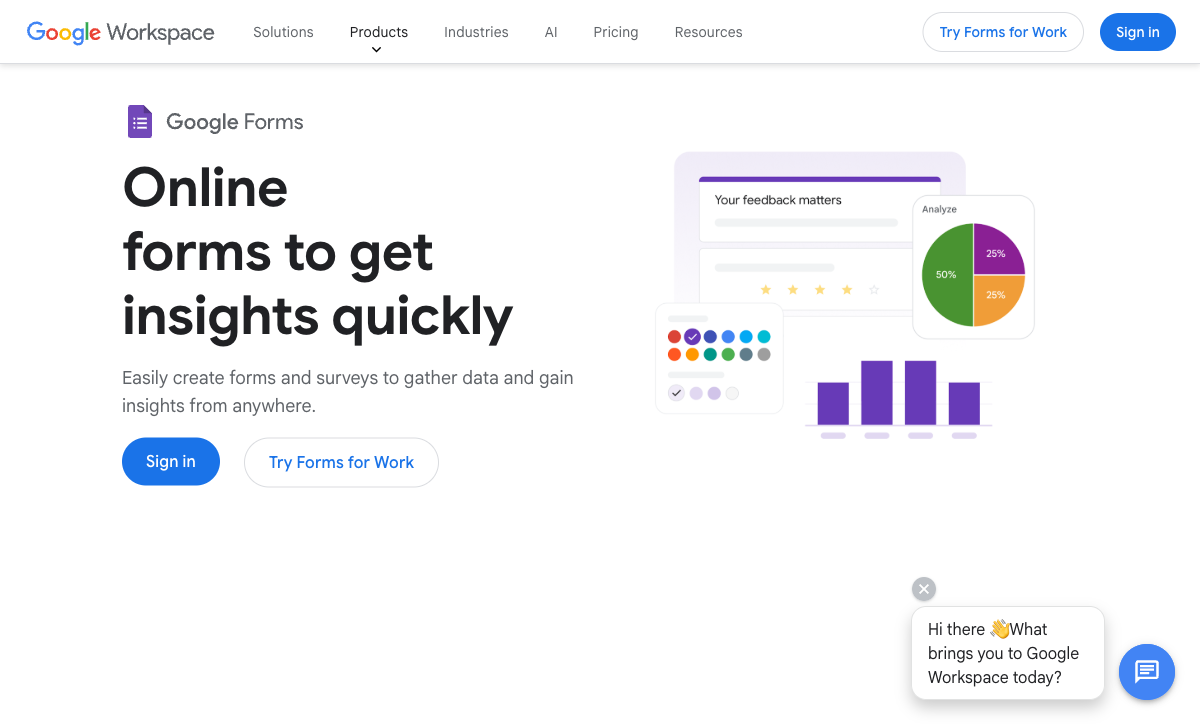
Google Forms allows unlimited responses on free personal Google accounts. Microsoft Forms caps personal accounts at 200 responses per form -- a limit that can catch you off guard during a large survey or event registration. For individuals, small teams, and anyone not on a Microsoft 365 subscription, Google Forms' unlimited responses are a tangible advantage. Microsoft 365 business and education accounts remove this cap, but that requires a paid subscription.
Better Quiz Features
Google Forms' quiz mode is slightly more mature: auto-grading across all question types, detailed answer explanations that display after submission, point-value customisation, question shuffling for test integrity, and native Google Classroom integration for grade sync. Microsoft Forms has comparable quiz features (auto-grading, points, Insights analytics), but Google Forms' quiz experience is more polished and has had more time to develop. For K-12 education especially, Google Forms' Classroom integration makes it the dominant quiz tool.
Google Classroom Integration
Google Classroom is used by hundreds of millions of students worldwide, and Google Forms is its native assessment tool. Teachers assign quizzes directly from Classroom, grades sync automatically, and students access forms through the same interface they use for all classwork. Microsoft Forms integrates with Teams for Education, but Google Classroom's market dominance in K-12 gives Google Forms an ecosystem advantage in education that Microsoft hasn't matched.
Simpler Interface
Google Forms is marginally simpler than Microsoft Forms. Both are easy to use, but Google Forms has fewer options and settings to navigate, making it slightly faster for quick form creation. The difference is small -- both tools can be learned in minutes -- but Google Forms' stripped-down interface means fewer distractions and faster time-to-publish.
Add-On Ecosystem
Google Forms has a mature add-on marketplace in the Google Workspace Marketplace. Third-party add-ons extend Google Forms with features like email notifications, advanced response validation, timer controls for quizzes, and data formatting tools. While add-ons vary in quality and reliability, the ecosystem provides a path for extending Google Forms' basic functionality. Microsoft Forms has a more limited third-party extension ecosystem -- most extensibility comes through Power Automate rather than direct add-ons to the form builder itself.
Where Microsoft Forms Wins
Power Automate Integration
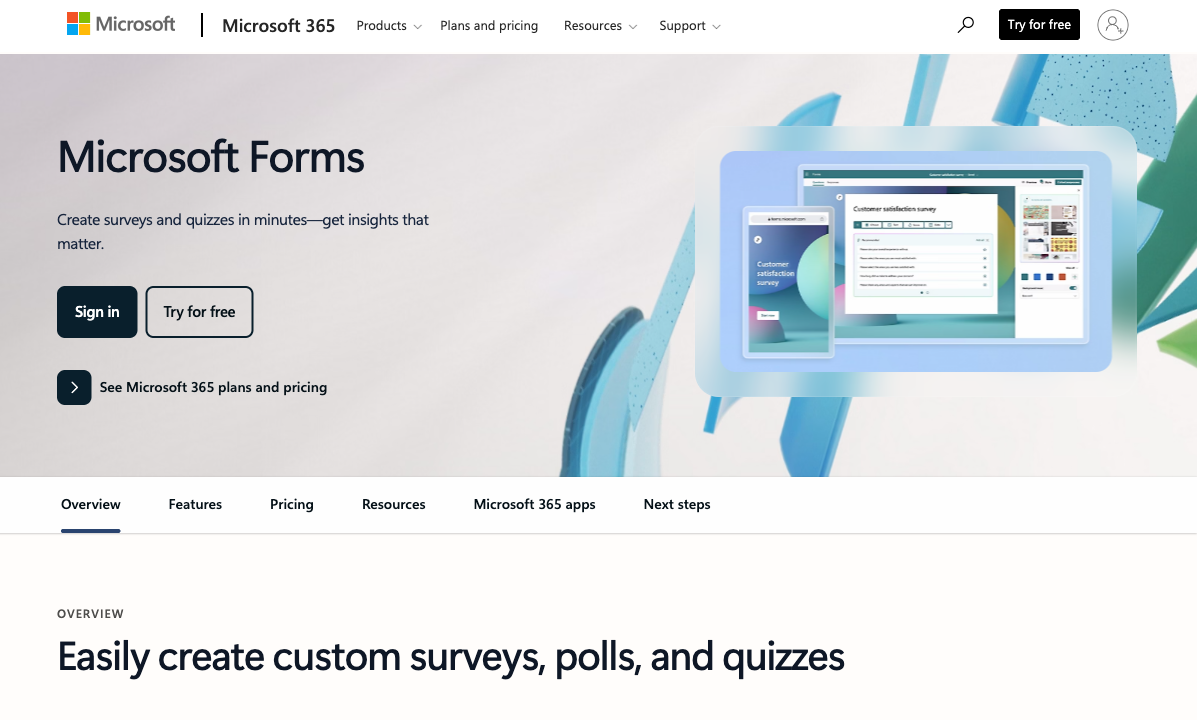
This is Microsoft Forms' strongest differentiator. Power Automate (Microsoft's workflow automation platform) triggers multi-step workflows from form submissions: send approval emails, update SharePoint lists, create Planner tasks, post to Teams channels, update Dynamics CRM records, and chain together complex business processes -- all without code. Google Forms has no equivalent native automation tool. You can use Google Apps Script for custom automation, but it requires JavaScript coding. For non-technical teams that need automated workflows triggered by form submissions, Power Automate is a significant advantage.
Microsoft Teams Embedding
Microsoft Forms embeds directly as a tab in Teams channels. Team members can fill out forms, view responses, and collaborate on form design without leaving Teams. For organisations that live in Teams (and many enterprise teams do), this native embedding eliminates context-switching. Google Forms can be shared in Google Chat, but it opens in a separate tab rather than embedding inline. For Teams-centric organisations, this integration makes form distribution and response collection seamless.
SharePoint Integration
Microsoft Forms embeds natively in SharePoint pages, making it easy to add surveys, feedback forms, and data collection to intranet sites. Responses can flow to SharePoint lists for structured data management. Google Forms embeds on any web page via iframe, but it doesn't have a native SharePoint-equivalent integration -- Google Sites is less widely used for enterprise intranets than SharePoint. For organisations using SharePoint as their intranet platform, Microsoft Forms is the natural choice.
Better Real-Time Collaboration
Microsoft Forms supports real-time co-authoring where multiple team members can edit a form simultaneously, similar to how multiple users can edit a Word document. Google Forms supports collaboration (multiple editors), but the real-time co-editing experience is less refined. For teams that build forms collaboratively -- HR teams designing surveys, marketing teams creating lead forms -- Microsoft Forms' co-authoring is smoother.
Forms Insights and Analytics
Microsoft Forms includes a built-in Insights feature that provides response analytics beyond basic charts: average completion time, question-level drop-off rates, and response distribution breakdowns. This is particularly useful in educational settings where teachers can see which questions students struggled with and how long they spent on assessments. Google Forms' built-in analytics are limited to basic summary charts -- detailed analysis requires exporting to Google Sheets and building your own dashboards. For quick at-a-glance understanding of form performance, Microsoft Forms' Insights panel saves a manual step.
Group Forms in Microsoft Teams
Beyond simple embedding, Microsoft Forms allows teams to create "Group Forms" that are owned by a Microsoft 365 group rather than an individual. This means the form, its responses, and its configuration survive employee departures -- a significant advantage for organisational continuity. Google Forms can be shared to Google Drive team folders, but ownership transfer is manual and forms are fundamentally tied to individual Google accounts. For organisations concerned about knowledge management and business continuity, Group Forms solve a real administrative headache.
Where Both Fall Short
The more important story is what neither platform can do. Google Forms and Microsoft Forms share the same fundamental limitations because they're both free ecosystem tools designed for basic data collection, not professional form building.
- No payment processing: Neither can collect payments, sell products, or handle transactions. This is the single biggest reason businesses upgrade to dedicated form builders.
- Minimal design customisation: Both offer basic theming (colours, header images) but no custom fonts, no layout control, and no ability to create branded form experiences. Forms from both platforms look generic and ecosystem-branded.
- Basic conditional logic: Both support section/page-level branching but lack field-level show/hide, calculations, or complex multi-condition rules.
- No e-signatures: Neither supports legally binding electronic signatures. Contracts, consent forms, and waivers require separate tools like DocuSign or HelloSign, adding cost and complexity to workflows that dedicated form builders handle natively.
- No calculation engine: Neither can compute dynamic values, build pricing calculators, or generate conditional totals. Forms collect data but don't process it. Any computation -- dynamic pricing, scoring, conditional totals -- must happen after submission in a spreadsheet or external tool.
- No HIPAA compliance: Neither Google Forms nor Microsoft Forms offers HIPAA-compliant data handling for healthcare organisations. Collecting Protected Health Information through either platform exposes organisations to regulatory risk. Healthcare providers need dedicated form builders with BAA support.
- No template libraries: Both offer a handful of basic templates (Google Forms has roughly 20; Microsoft Forms has a similar limited selection). Neither provides the thousands of industry-specific templates available from dedicated form builders like Jotform (20,000+) or Paperform (30,000+).
- Limited integrations beyond their ecosystem: Both integrate beautifully within their own suite but struggle to connect with third-party tools. CRM integration, marketing automation, and cross-platform workflows require add-ons or workarounds.
See Them in Action
Placing Google Forms and Microsoft Forms side by side, the similarities are striking. Both offer a clean form editor with question types on the right, a preview panel, and basic theming options. The visual differences are minimal -- Google's editor uses its Material Design language while Microsoft's uses the Fluent Design system, but the workflow is nearly identical.
The real differences emerge in what happens after form submission. Google Forms sends data to Google Sheets for analysis. Microsoft Forms can trigger Power Automate workflows that route data across dozens of Microsoft services and third-party tools. For teams that need automated post-submission processes, the Microsoft ecosystem provides more powerful automation without code.
Pricing Comparison
Both are "free" but the terms differ based on account type. Here's how the pricing actually works:
| Account Type | Google Forms | Microsoft Forms | Key Difference |
|---|---|---|---|
| Free Personal | Unlimited forms, unlimited responses, 15 GB Drive | Unlimited forms, 200 responses/form | Google Forms has no response cap. Microsoft Forms caps at 200. |
| Business/Education | Google Workspace: $7/user/mo. Same form features, more storage. | Microsoft 365: $6/user/mo+. No response cap, Teams + Power Automate. | Similar pricing. Microsoft adds Power Automate; Google adds storage. |
| Enterprise | Google Workspace Enterprise: custom pricing | Microsoft 365 E3/E5: $36-57/user/mo | Form features are identical; you're paying for the broader suite. |
Google Forms
Microsoft Forms
| Product | Plan | Monthly Price | Annual Price (per month) | Free Plan | Free Trial | Limits |
|---|---|---|---|---|---|---|
| Google Forms | Free (Personal) | Free | Free | Yes | 14 days | forms: Unlimited, submissions: Unlimited, storage: 15 GB (shared across Google Drive), users: 1, file uploads: Included in 15 GB storage |
| Google Forms | Business Starter | $7/mo | $7/mo billed annually | forms: Unlimited, submissions: Unlimited, storage: 30 GB per user, users: Up to 300, file uploads: Included in storage | ||
| Google Forms | Business Standard | $14/mo | $14/mo billed annually | forms: Unlimited, submissions: Unlimited, storage: 2 TB per user, users: Up to 300, file uploads: Included in storage | ||
| Google Forms | Business Plus | $22/mo | $22/mo billed annually | forms: Unlimited, submissions: Unlimited, storage: 5 TB per user, users: Up to 300, file uploads: Included in storage | ||
| Microsoft Forms | Free (Personal Microsoft Account) | Free | Free | Yes | 1 month | forms: 400, submissions: 200/form, storage: N/A, users: 1 |
| Microsoft Forms | Microsoft 365 Business Basic | $6/mo | $6/mo billed annually | forms: 400, submissions: 5,000,000/form, storage: 1 TB OneDrive, users: Per user | ||
| Microsoft Forms | Microsoft 365 Business Standard | $12.5/mo | $12.5/mo billed annually | forms: 400, submissions: 5,000,000/form, storage: 1 TB OneDrive, users: Per user | ||
| Microsoft Forms | Microsoft 365 Business Premium | $22/mo | $22/mo billed annually | forms: 400, submissions: 5,000,000/form, storage: 1 TB OneDrive, users: Per user |
What Users Say
Neither tool generates the kind of passionate reviews that dedicated form builders do -- they're free ecosystem utilities, not products people seek out and evaluate. Google Forms benefits from ubiquity and simplicity. Microsoft Forms benefits from Teams and Power Automate integration. Both receive criticism for the same things: limited design, no payments, basic logic, and a ceiling that forces upgrades to dedicated form builders for professional use.
The most common user sentiment across both platforms: "It's free and it works for basic stuff, but I wish it could do more." That "more" typically means payments, design customisation, conditional logic, or workflow automation -- features that dedicated form builders provide.
Enterprise users tend to prefer whichever tool matches their organisation's existing ecosystem, with satisfaction driven more by ecosystem integration quality than by form-building features. IT administrators value the single sign-on, admin controls, and compliance features that come with the broader productivity suite rather than the form builder's specific capabilities.
Who Is Each Platform Best For?
Google Forms is ideal for: Google Workspace organisations, K-12 and higher education (via Classroom), anyone needing unlimited free responses, quick internal surveys, and teams that want the absolute simplest form-building experience.
Microsoft Forms is ideal for: Microsoft 365 organisations, Teams-centric workplaces, businesses needing Power Automate workflows, SharePoint-based intranets, and enterprises already invested in the Microsoft ecosystem.
The honest answer for most people: use whichever ecosystem your organisation already pays for. The form builders themselves are nearly interchangeable -- the ecosystem integration is what matters. Don't switch productivity suites for a form builder.
Neither platform is ideal for: businesses that need payment processing, professional branding, conditional logic beyond basic branching, e-signatures, or calculation engines. Both ecosystem tools hit the same ceiling when professional form needs outgrow basic data collection. For those use cases, dedicated form builders like Paperform, Jotform, or Typeform provide the capabilities that neither free ecosystem tool was designed to offer.
Need More Than Either Ecosystem Tool Offers?
If you've hit the ceiling with Google Forms or Microsoft Forms -- needing payments, professional branding, conditional logic, or calculation capabilities -- Paperform fills the gap without locking you into either ecosystem. Paperform works equally well alongside Google Workspace and Microsoft 365, connecting to both via native integrations and 2,000+ Zapier/Make connections.
Starting at $24/month, Paperform adds everything both ecosystem tools lack: 5 integrated payment gateways (Stripe, PayPal, Square, Braintree, Google Pay), an Excel-style calculation engine for dynamic pricing and scoring, built-in e-signatures (Papersign), professional design quality with custom fonts and layouts, and workflow automation (Stepper) that rivals Power Automate for form-triggered processes.
For businesses that need forms to do more than collect data -- calculate prices, process payments, capture signatures, trigger workflows -- Paperform is the upgrade path that works regardless of which productivity suite you use. See our Google Forms alternatives and Microsoft Forms alternatives for the full comparison.
The Verdict
Choose whichever ecosystem you're already in. If your organisation runs on Google Workspace, use Google Forms. If it runs on Microsoft 365, use Microsoft Forms. The form builders are nearly identical in capability, and the ecosystem integration -- Sheets vs Excel, Classroom vs Teams, Drive vs OneDrive, Apps Script vs Power Automate -- is the only meaningful differentiator. Switching ecosystems for a form builder would be like changing your operating system because you prefer a different calculator app.
If you have access to both and no ecosystem commitment, Google Forms has a slight edge: no response cap on personal accounts, marginally simpler interface, and stronger quiz features for education. Microsoft Forms counters with Power Automate (the strongest non-coding workflow tool in the comparison), better Teams integration, smoother real-time collaboration, and Group Forms for organisational continuity. Neither advantage is decisive on its own.
For mixed-ecosystem organisations that use both Google Workspace and Microsoft 365, the practical advice is to pick one form tool and standardise. Running both creates confusion about where form data lives and fragments response management across platforms. If your team primarily communicates through Teams, standardise on Microsoft Forms. If they live in Gmail and Drive, standardise on Google Forms.
The more important question is whether either free tool meets your actual needs. Both share the same fundamental limitations: no payments, no design customisation, no calculations, no e-signatures, and basic logic only. If any of those capabilities are on your requirements list, neither Google Forms nor Microsoft Forms is the answer, and you should evaluate dedicated form builders like Paperform, Jotform, or Typeform.
The ceiling for both ecosystem tools is the same: basic data collection with ecosystem integration. When your forms need to do more -- collect money, compute values, capture signatures, trigger workflows beyond their native ecosystem, or represent your brand professionally -- it's time to graduate to a dedicated form builder. That transition is the real decision, not the choice between Google and Microsoft. For more options, see our Google Forms alternatives, Microsoft Forms alternatives, or the full best form builders ranking.
Frequently Asked Questions
Are Google Forms and Microsoft Forms both free?
Both are free with their respective accounts, but the terms differ. Google Forms is free with any personal Google account -- unlimited forms, unlimited responses, 15 GB shared Drive storage. Microsoft Forms is free with a personal Microsoft account but with caps: 200 responses per form for personal accounts. With a Microsoft 365 business or education subscription, Microsoft Forms removes response caps and adds collaboration features. If you're already paying for Microsoft 365, Forms is included at no extra cost. If you're using free personal accounts, Google Forms is more generous on response limits.
Which integrates better with its ecosystem?
Both integrate seamlessly within their own ecosystems -- that's the entire point of each tool. Google Forms feeds into Google Sheets, Drive, and Classroom with zero configuration. Microsoft Forms connects natively to Excel, SharePoint, Teams, Power Automate, and OneDrive. The integration quality is comparable; the choice depends on which ecosystem your organisation uses. The one area where Microsoft has an edge is Power Automate -- Microsoft's workflow automation tool lets you build complex multi-step workflows triggered by form submissions, which is more powerful than anything Google Forms offers natively (Google requires Apps Script for custom automation).
Can I switch from Google Forms to Microsoft Forms (or vice versa)?
There's no direct migration tool between the platforms. The practical approach: export your Google Forms responses to CSV via Google Sheets, then manually recreate the forms in Microsoft Forms (or vice versa). For simple forms (5-10 questions, no logic), rebuilding takes minutes. For complex forms with branching logic, you'll need to recreate the logic rules manually. The bigger challenge is redirecting existing links and embedded forms -- old form URLs won't redirect to the new platform. If you have forms embedded across multiple websites or shared in documents, you'll need to update every reference.
Which is better for quizzes and education?
Both are excellent for education, but they serve different school ecosystems. Google Forms integrates with Google Classroom, which dominates K-12 education globally. Auto-grading, point values, answer explanations, and grade sync with Classroom make it the default choice for Google-based schools. Microsoft Forms integrates with Microsoft Teams for Education and offers similar quiz features: auto-grading, point values, and Insights analytics that show class-level performance data. If your school uses Google Workspace for Education, use Google Forms. If it uses Microsoft 365 Education, use Microsoft Forms. Both are fully capable quiz tools.
Do either Google Forms or Microsoft Forms support payments?
Neither. Both Google Forms and Microsoft Forms are strictly data collection tools -- no payment processing, no eCommerce, no transaction handling. If you need to collect payments through forms, you'll need a dedicated form builder like Paperform (5 integrated gateways), Jotform (40+ gateways), or Typeform (Stripe). This is the single biggest shared limitation of both ecosystem tools and the primary reason businesses upgrade to paid form builders.
Sources & References
- Google Forms vs Microsoft Forms: Which Is Better? — Zapier, 2025
- Best Online Form Builder to Use in 2026 -- Top 20 Tools — EmailToolTester, 2026
Last updated March 21, 2026
Ready to try Paperform?
Create beautiful forms, payment pages, and workflows — no code required.